QML 文檔采用高度可讀、結構化布局定義對象層次結構。每個 QML 文檔由 2 個部分組成:導入章節和對象聲明章節。用戶界麵的最常見類型和功能的提供在
QtQuick
導入。
要使用 Qt Quick 模塊,QML 文檔需要導入它。import 句法看起來像這樣:
import QtQuick 2.3
類型和功能的 Qt Quick 提供現在可用於 QML 文檔!
QML 文檔中的對象聲明定義將在視覺場景中顯示什麼。 Qt Quick 提供用於所有用戶界麵的基本構建塊 (譬如:用於顯示圖像、文本及用於處理用戶輸入的對象)。
簡單對象聲明可能是帶有一些居中文本的彩色矩形:
Rectangle {
    width: 200
    height: 100
    color: "red"
    Text {
        anchors.centerIn: parent
        text: "Hello, World!"
    }
}
這定義對象層次結構采用根
Rectangle
對象,其擁有子級
Text
對象。
parent
的
Text
對象被自動設置到
Rectangle
,和同樣,
Text
對象被添加到
children
特性為
Rectangle
對象,通過 QML。
The
Rectangle
and
Text
類型用於以上範例, 兩者的提供通過
QtQuick
導入。將 import 和對象聲明放在一起,得到完整 QML 文檔:
import QtQuick 2.3
Rectangle {
    width: 200
    height: 100
    color: "red"
    Text {
        anchors.centerIn: parent
        text: "Hello, World!"
    }
}
若將該文檔另存為 HelloWorld.qml,可以加載並顯示它。
要顯示由 QML 文檔定義的圖形場景,可能加載它采有 Qt Creator 。對於如這種的簡單 UI 文件,選擇 File > New File or Project > Application (Qt Quick) > Qt Quick Application - Empty 從 Qt Creator 中。
按綠色 運行 按鈕運行應用程序。應該見到文本 Hello, World! 在紅色矩形中心。
有關在 Qt Creator 中創建和運行工程的更多信息,拜訪以下頁麵:
雖然 Qt Quick 提供基本圖形元素, Qt Quick Controls 提供現成的 QML 類型以供在應用程序中使用。
插入 ApplicationWindow 類型是創建應用程序的很好起點。應用程序 UI 擁有這種基本布局:
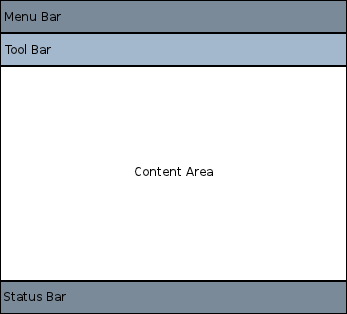
在各區域內,不同 controls 可以添加並連接以形成應用程序。例如,以下代碼片段是演示可用空間用法的基本應用程序:
//import related modules
import QtQuick 2.12
import QtQuick.Controls 2.12
//window containing the application
ApplicationWindow {
    visible: true
    //title of the application
    title: qsTr("Hello World")
    width: 640
    height: 480
    //menu containing two menu items
    menuBar: MenuBar {
        Menu {
            title: qsTr("File")
            MenuItem {
                text: qsTr("&Open")
                onTriggered: console.log("Open action triggered");
            }
            MenuItem {
                text: qsTr("Exit")
                onTriggered: Qt.quit();
            }
        }
    }
    //Content Area
    //a button in the middle of the content area
    Button {
        text: qsTr("Hello World")
        anchors.horizontalCenter: parent.horizontalCenter
        anchors.verticalCenter: parent.verticalCenter
    }
}
應用程序擁有 2 菜單項和中間按鈕。點擊 Exit 菜單項關閉應用程序。
還有不同導航方法和不同控件 (譬如:按鈕和滑塊)。以下範例是可用的從 Qt Creator 並演示不同控件及布局。
隨意拷貝並粘貼代碼片段到此簡單 Hellow World 應用程序中,看 QML 是如何工作的。
使用 QML 定義用戶界麵的一大優勢是它允許用戶界麵設計者定義應用程序應如何采用簡單 JavaScript 錶達式對事件做齣反應。在 QML 中,我們引用這些事件作為 signals 和這些信號被處理通過 信號處理程序 .
例如,考慮以下範例:
import QtQuick 2.12
Rectangle {
    width: 200
    height: 100
    color: "red"
    Text {
        anchors.centerIn: parent
        text: "Hello, World!"
    }
    TapHandler {
        onTapped: parent.color = "blue"
    }
}
This example can be saved as "ClickableHelloWorld.qml" and run with the qml runtime tool. Whenever the user clicks anywhere in the window, the rectangle will change from red to blue.
注意: TapHandler 還為觸摸事件發射敲擊信號,因此此代碼也工作於移動設備。
可以采用簡單錶達式處理類似鍵盤用戶輸入:
Rectangle {
    width: 200
    height: 100
    color: "red"
    Text {
        anchors.centerIn: parent
        text: "Hello, World!"
    }
    focus: true
    Keys.onPressed: {
        if (event.key == Qt.Key_Return) {
            color = "blue";
            event.accepted = true;
        }
    }
}
對象及其特性形成 QML 文檔定義的圖形界麵基礎。QML 語言允許特性以各種方式相互綁定,使用戶界麵能夠高動態。
在以下範例中,幾何體對於每個子級 Rectangle 被綁定到父級 Rectangle 。若幾何體對於父級 Rectangle 被改變,幾何體對於每個子級 Rectangle 將自動更新由於特性綁定。
Rectangle {
    width: 400
    height: 200
    Rectangle {
        width: parent.width / 2
        height: parent.height
        color: "blue"
    }
    Rectangle {
        width: parent.width / 2
        height: parent.height
        x: parent.width / 2
        color: "green"
    }
}
特性還可以動態更新憑藉動畫。
QtQuick
import 提供各種動畫類型,可用於動畫改變特性值。在以下範例中,特性被動畫化,然後顯示在
Text
區域:
Rectangle {
    color: "lightgray"
    width: 200
    height: 200
    property int animatedValue: 0
    SequentialAnimation on animatedValue {
        loops: Animation.Infinite
        PropertyAnimation { to: 150; duration: 1000 }
        PropertyAnimation { to: 0; duration: 1000 }
    }
    Text {
        anchors.centerIn: parent
        text: parent.animatedValue
    }
}
最重要的 QML 概念之一是類型重用。應用程序可能擁有完全相似的多個可視化類型 (例如:多個按鈕),且 QML 允許將這些種類的東西定義為可重用的自定義類型,以最小化代碼重復及最大化可讀性。
例如,想象開發者定義新的
MessageLabel
類型在
MessageLabel.qml
文件:
// MessageLabel.qml
import QtQuick 2.12
Rectangle {
    height: 50
    property string message: "debug message"
    property var msgType: ["debug", "warning" , "critical"]
    color: "black"
    Column {
        anchors.fill: parent
        padding: 5.0
        spacing: 2
        Text {
            text: msgType.toString().toUpperCase() + ":"
            font.bold: msgType == "critical"
            font.family: "Terminal Regular"
            color: msgType === "warning" || msgType === "critical" ? "red" : "yellow"
            ColorAnimation on color {
                running: msgType == "critical"
                from: "red"
                to: "black"
                duration: 1000
                loops: msgType == "critical" ? Animation.Infinite : 1
            }
        }
        Text {
            text: message
            color: msgType === "warning" || msgType === "critical" ? "red" : "yellow"
            font.family: "Terminal Regular"
        }
    }
}
現在可以在應用程序中多次重用該類型,如下所示:
// application.qml import QtQuick 2.12 Column { width: 180 height: 180 padding: 1.5 topPadding: 10.0 bottomPadding: 10.0 spacing: 5 MessageLabel{ width: parent.width - 2 msgType: "debug" } MessageLabel { width: parent.width - 2 message: "This is a warning!" msgType: "warning" } MessageLabel { width: parent.width - 2 message: "A critical warning!" msgType: "critical" } } |
按此方式,模塊化用戶界麵類型在應用程序中被組裝及重用。
見 QML 對象屬性 瞭解如何開發自己可重用組件的更多有關細節。
現在您已見到 QML 的作用,準備邁齣下一步。以下頁麵將引導您踏上 QML 之旅。
